Browse the docs
Skills
Last updated: November 16, 2026
A skill is a short guide, for example what a quote looks like at your company or how you follow up after an offer. timelit follows it whenever it fits the task, so you stop explaining the same steps again.
Why we built this
Every company has its own way of doing routine things: the order of a quote, the tone of a reminder, what must never be promised. A skill writes that down once. timelit reads it only when the task calls for it, in your chats and in your agents.
How it works
1. Describe it. Open Library in the sidebar, then Skills, and click Create skill. Write what the skill should teach, for example "how we follow up after an offer". timelit may ask one round of questions.
2. Check what timelit wrote. The skill appears beside the chat with three parts:
- Name, for example "Quote in house style".
- When to use, one line such as "When I write a quote for a customer". timelit follows the skill when a task fits this line.
- Instructions: step by step, what to do, what matters and what must never happen.
Change it by hand or by telling timelit in the chat. Rather type it yourself? Click Fill it in myself.
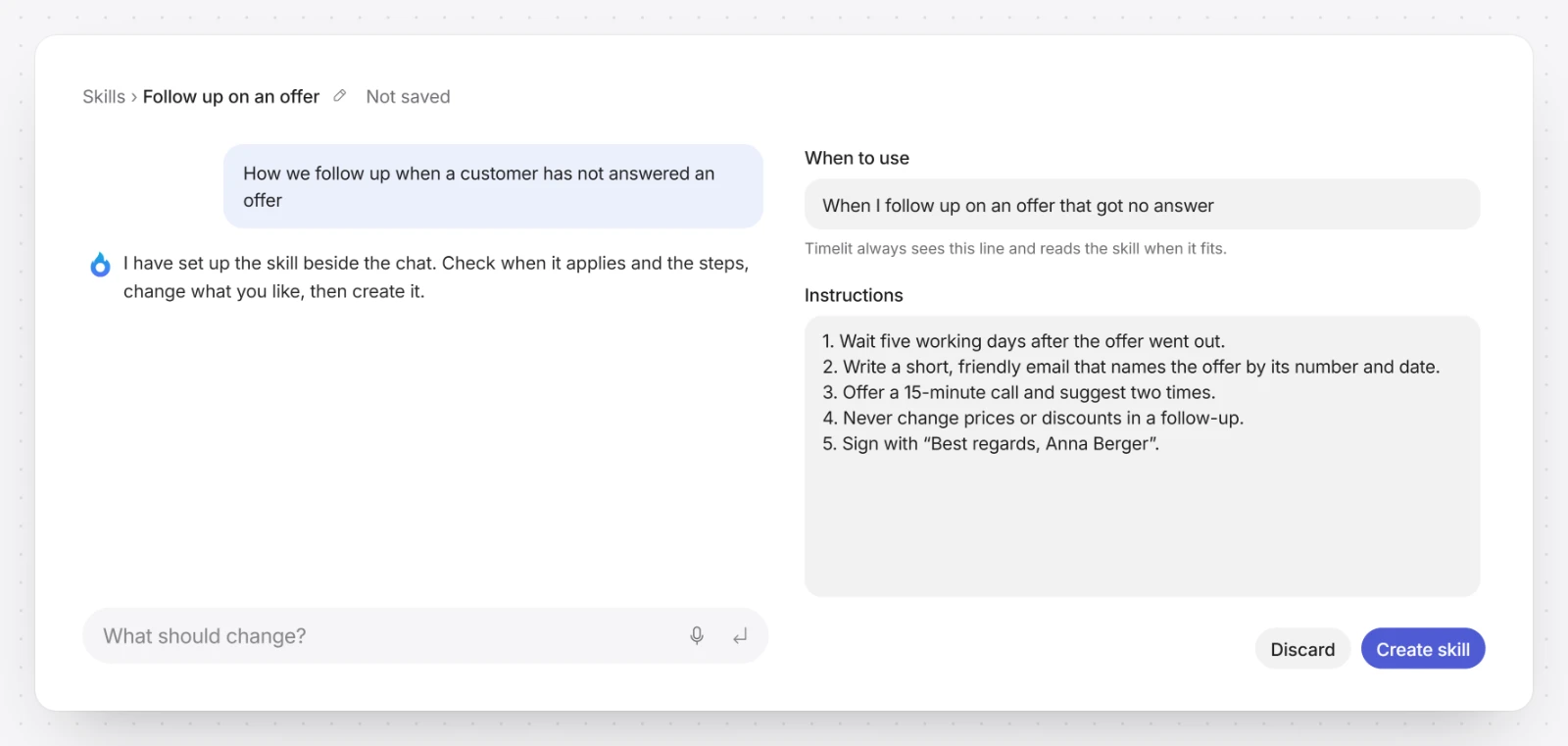
3. Create it. Click Create skill. Nothing is saved before that.
4. Use it. timelit picks a skill on its own when the task fits its When to use line. To call it yourself, type / in the chat and pick the skill, or click the paperclip and choose Use a skill. You can also add it to an agent on the agent's Instructions tab.
To change a skill, open it under Library, Skills, tell timelit what should change or edit it yourself, and click Save.
Sharing
On the Teams plan, click Share… and choose who may use the skill: Only me, Teams, Specific people or Whole organization (after an admin has approved it). Only you can edit a skill you created. See Agents for how sharing works.
Good to know
- Skills need the Pro or Teams plan. Sharing needs the Teams plan.
- Files cannot be added to a skill. For documents, use a knowledge base.
- Deleting a skill removes it for you and everyone you shared it with. Agents that use it carry on without it.
- On a phone, Skills is under More.