Browse the docs
Booking calendars
Last updated: November 8, 2026
Your booking page only offers times when you are free. Besides the Outlook calendar your bookings go into, timelit can check your other Outlook calendars, a second Microsoft account, Google Calendar, iCloud Calendar and any calendar with an iCal link, and keep public holidays free.
Why we built this
Few people live in one calendar. The dentist is in iCloud, the family in Google, the second company in another Microsoft account. If your booking page only sees Outlook, someone books you right over the dentist.
Connect those calendars once and their busy times block your booking page. Bookings still go into Outlook: the other calendars are only read.
How it works
1. Open the calendar settings. Open Booking in the sidebar, then Settings. Under Calendars, Check for conflicts in lists every calendar timelit can check.
2. Turn on the calendars that count. Each connected Microsoft account shows its main calendar and the other calendars it owns. Turn on the ones whose appointments should block times.
3. Add another calendar account. Choose Add calendar, then Microsoft 365 or Outlook, Google Calendar, iCloud Calendar or Calendar link (iCal). While you look at your week under Booking, Calendar, the + next to Calendars does the same.
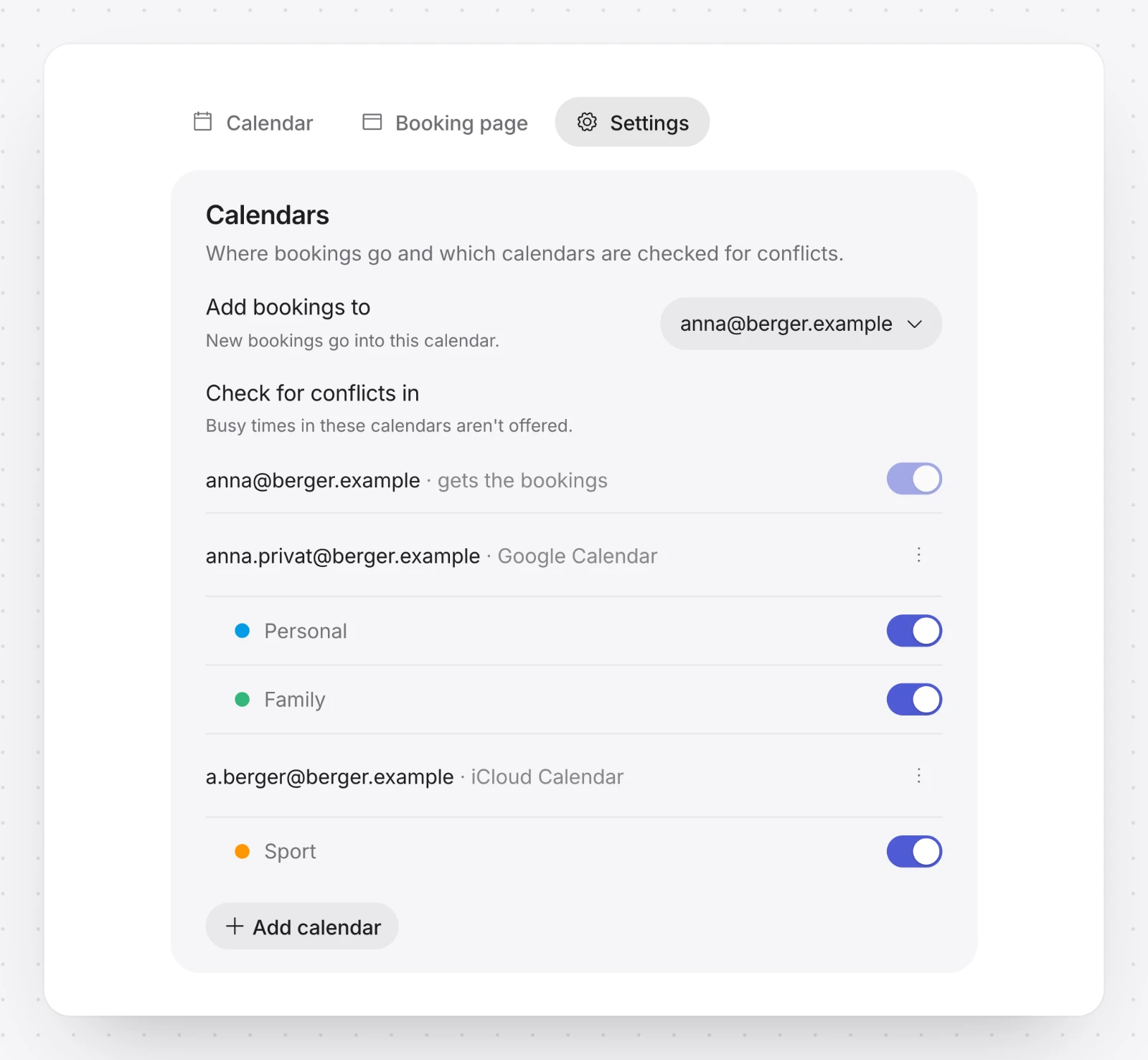
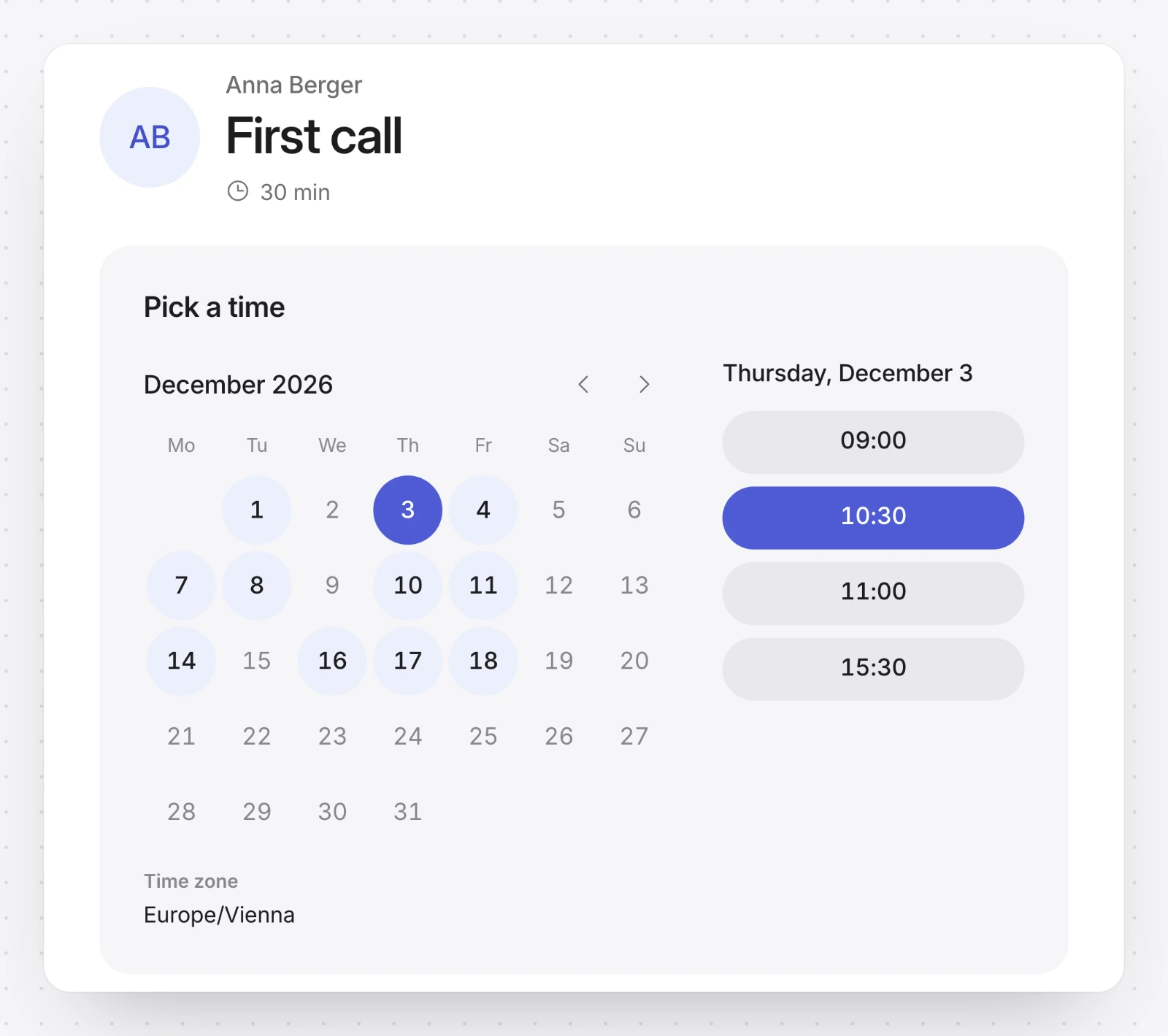
4. Busy times stay off your page. Busy, tentative and out of office block a time. Free and working elsewhere do not.
Other Outlook calendars
Every calendar you own in a connected Microsoft account is listed, and you turn on the ones that count. A calendar someone else shared with you is not offered, and neither are Outlook's birthday and holiday calendars: their entries never block a time. To keep public holidays free, use Public holidays below.
A second Microsoft account
Choose Add calendar, then Microsoft 365 or Outlook, and sign in with the other account. timelit only asks for its calendar. If you pick an account that is already connected, nothing changes.
If your organization only allows approved apps, its admin has to allow timelit first. timelit tells you so, and you can ask for it on the Microsoft 365 page.
Google Calendar
Choose Add calendar, then Google Calendar, and sign in with your Google account. timelit asks to see when you are busy and the names of your calendars, nothing more. It never sees what an appointment is about, where it is or who joins.
Your main Google calendar is checked right away; turn on any others you want to count. Google's own calendars, such as holidays and birthdays, are not offered.
If you use Google Calendar at work and Google says your organization does not allow timelit, your Google Workspace admin has to allow it first. In the Google Admin console they find it under Security, Access and data control, API controls, where they can mark timelit as trusted.
iCloud Calendar
iCloud has no sign-in for other apps, so timelit uses an app-specific password: a separate password just for timelit, which you can revoke at any time. Your Apple ID password is never needed. The window that asks for it shows these steps too, under How do I get this password?
- In timelit, choose Add calendar, then iCloud Calendar.
- In a new tab, sign in at account.apple.com with your Apple ID and choose Sign-In and Security, then App-Specific Passwords. If that option is missing, turn on two-factor authentication for your Apple ID first.
- Click +, type timelit as the name and confirm with your Apple ID password. Apple shows a password like abcd-efgh-ijkl-mnop. Copy it.
- Back in timelit, enter your Apple ID, paste the App-specific password and choose Connect.
All your iCloud calendars are checked; turn off any that should not count. An event marked free and an invitation you declined do not block a time. An invitation you have not answered yet does.
timelit reads your iCloud events to work out when you are busy and shows their titles only to you, under Booking, Calendar. It stores neither the events nor their titles.
Any other calendar by its link
Calendars such as Proton Calendar, Fastmail or Nextcloud can share an iCal link: an address that often ends in .ics or starts with webcal://. You find it in the calendar's sharing or export settings. Choose Add calendar, then Calendar link (iCal), and paste it. Its appointments then block times on your booking page; timelit only reads the calendar. Where do I find this link? in the same window shows these steps.
Keep the link to yourself: anyone who has it can see the calendar. Some providers update such a link only every few hours, so a brand-new appointment can take a while to block a time. For Google, iCloud and Microsoft, use their own entries under Add calendar instead: they are always up to date. If you reset the link at your calendar provider, choose Reconnect in Booking, Settings and paste the new one.
Public holidays
Open Booking, then Settings, and turn on Keep public holidays free under Public holidays. timelit suggests a country; pick another Country if it is wrong. Where holidays differ within a country, such as German states, choose your State or region too.
On a public holiday your booking page offers no times all day, in your own time zone. Only public holidays count, not bank holidays or half days such as Christmas Eve in Germany. Booking, Calendar shows the holidays, and you can hide them there under Calendars.
When a calendar can't be read
Your booking page stays online. For a while, the calendar's last known busy times still block your page; after that it blocks nothing until it can be read again. You get one email, and Booking, Settings shows what happened.
If access ended, for example because you removed timelit in your Google account or changed your password, choose Reconnect next to the account. Changing your Apple ID password ends every app-specific password, so iCloud then needs a new one.
Removing a calendar account
Open the menu next to the account and choose Disconnect. Its calendars stop blocking times right away, and timelit gives up its access. For iCloud, also revoke the app-specific password at account.apple.com: only you can do that.
You can also remove timelit in your Google account under Security, Your connections to third-party apps and services. timelit then shows the account as needing a reconnect.
What timelit will never do
- Put bookings anywhere but Outlook. timelit never adds or changes anything in Google Calendar, iCloud or a calendar you added by its link.
- Ask for your Apple ID password. iCloud only gets the app-specific password you create for timelit.
- Show your appointments to visitors. Visitors only see free times on your booking page.
Good to know
- Booking is in Beta.
- Connecting another calendar account needs an active plan; your trial counts.