Browse the docs
Connected apps
Last updated: November 3, 2026
Connect the apps your team works in once, and timelit can use them in the chat and in your automations: look up what is new, create a ticket, post an update. Nothing happens in an app without the rights you give it.
Why we built this
Work does not stay in Outlook. A customer email becomes a ticket, a meeting becomes a task in your project tool, and someone copies it over by hand. timelit can do that copying for you, but only within limits you set, app by app.
How it works
1. Pick the app. Open Connections in the sidebar. Search the catalog or filter it by category, then choose Connect on the app's card.
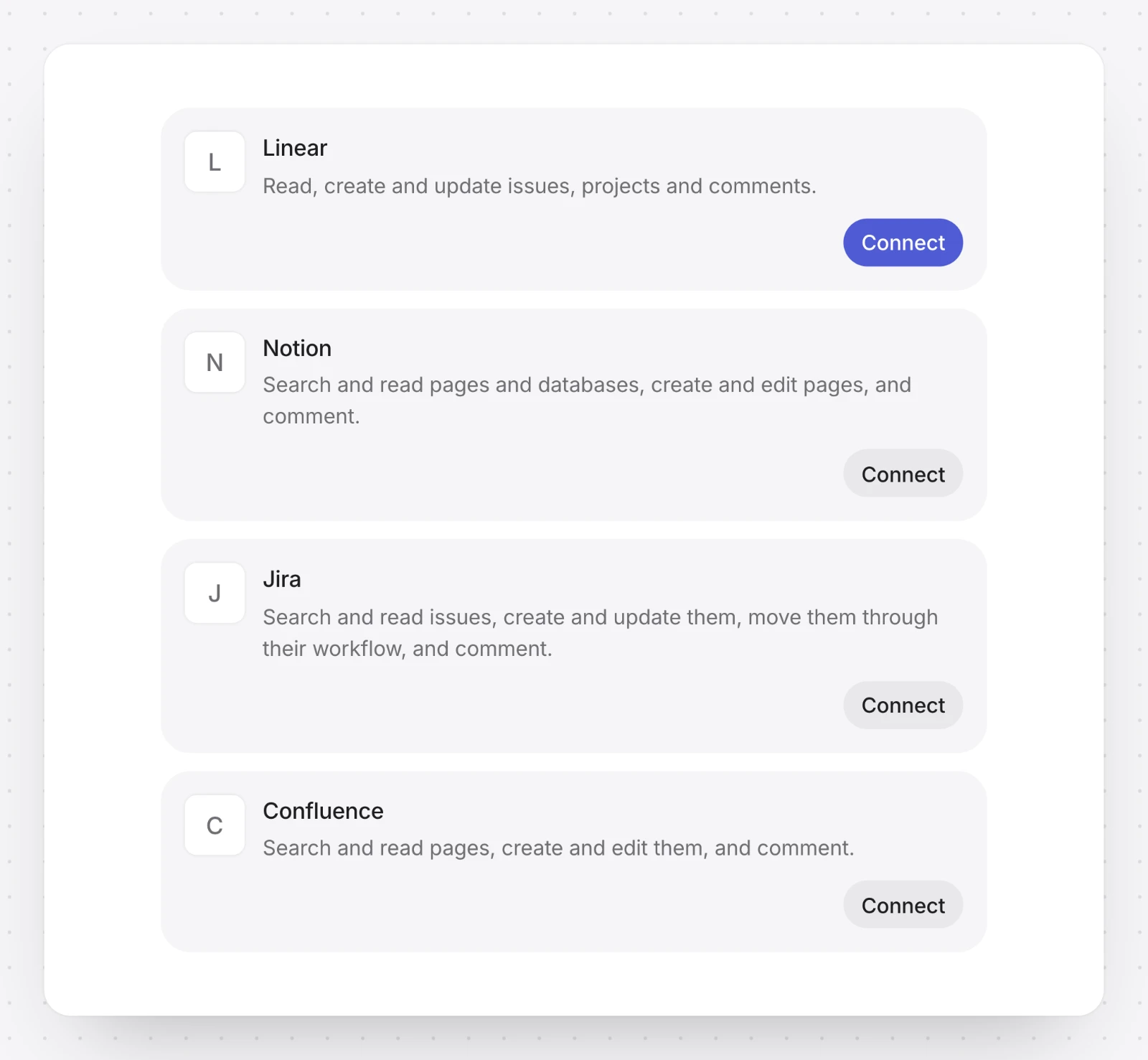
2. Check what it may do. Before you sign in, timelit shows what the app can do and what timelit never does with it.
3. Sign in to the app. You sign in on the app's own page and come back to timelit. Some apps first ask for an address, such as your workspace or region, and a few use a key you create in the app instead (API key).
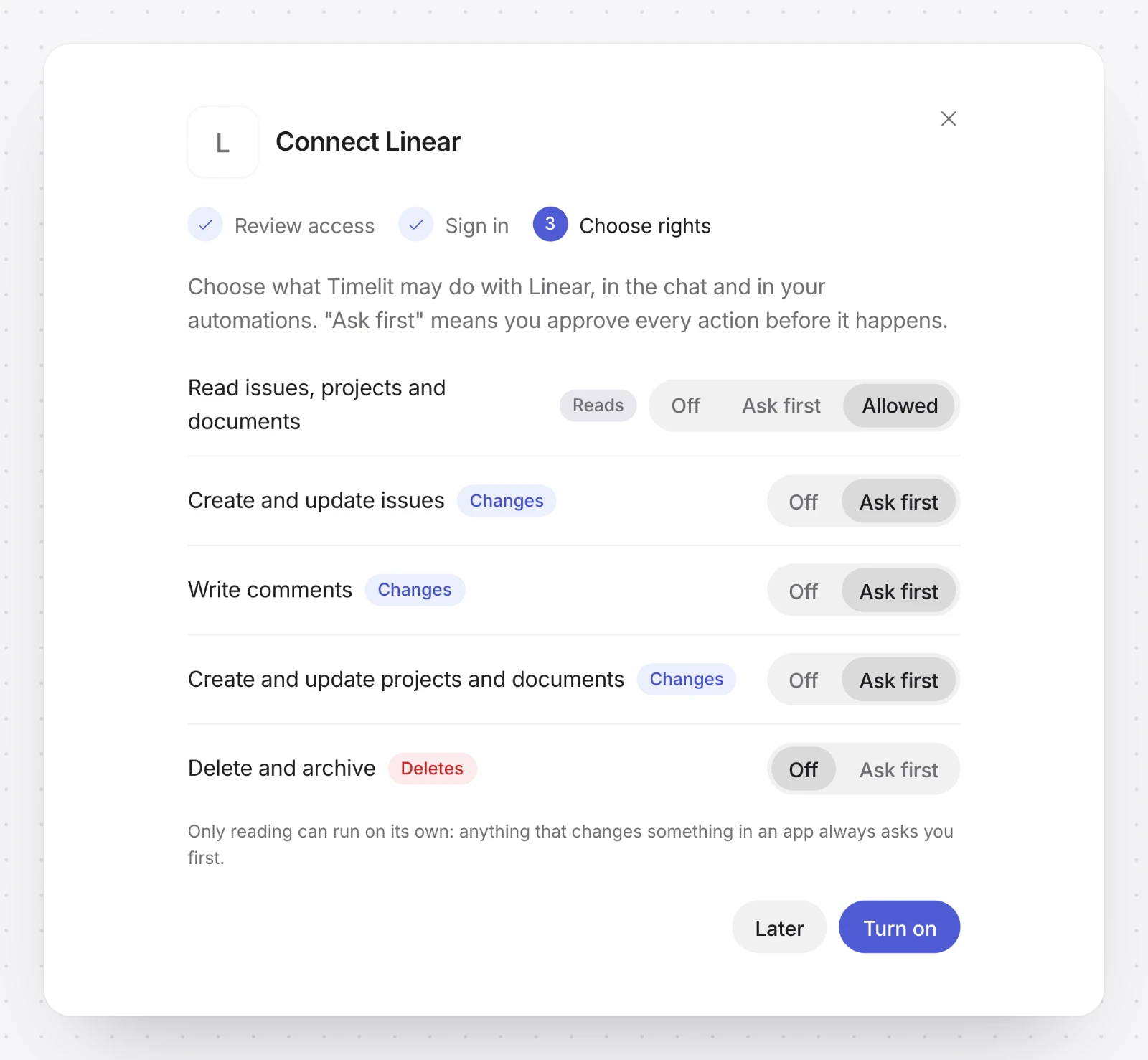
4. Choose the rights. Decide for each kind of tool what timelit may do (see below), then choose Turn on. You can change the rights any time under Manage.
You can also start from the chat: when your question or an automation's plan needs an app you have not connected, timelit shows a Connect card. Connect the app, then choose Continue, or Plan without it.
What timelit may do
An app's tools are grouped by what they do: Reads, Changes, Deletes, or Unclear when the app doesn't say. For each group you choose:
| Right | What it means |
|---|---|
| Off | timelit never uses these tools. |
| Ask first | You approve every action before it happens. The approval shows the app, the tool and exactly what it will send. |
| Allowed | timelit uses these tools on its own. Only tools that read can be Allowed. |
Anything that changes something in an app always asks first, so there you choose between Off and Ask first. Deleting starts off, and so do tools whose purpose is unclear. Under Manage you can also switch single tools off, and for GitHub limit timelit to certain owners or repositories (Limit it to).
In the chat and in your automations
Ask the chat about a connected app, for example "which issues are assigned to me?" or "create an issue for this email". It reads on its own only where reading is Allowed. For everything else it shows an approval, and nothing changes until you choose Approve.
An automation only uses the exact tools its plan lists. You see them on the plan before you save it. When a run wants to use a tool set to Ask first, it waits for you on the Tasks page.
Your own server
On the Teams plan you can connect a server your team runs, for example one your developers built for an internal system. On the Add your own server card, choose Add, then enter its Server address and a Name. You then choose what timelit may use, the same way as for an app.
When an app needs you
| What the card says | What to do |
|---|---|
| Sign in again | The app no longer accepts timelit's sign-in, for example because access expired. Automations that use it pause the next time they would run. Choose Reconnect and sign in; your rights stay, and the paused automations continue on their own. |
| Tools changed | The app changed a tool your automations use, so they wait instead of running something you never checked. Open Manage, look at the change and choose Use the new version. |
| Needs your admin | Your company only allows approved apps. The card says what your admin has to do. |
| Not set up yet or Coming soon | The app can't be connected yet, by anyone. |
Disconnecting an app
Open Manage and choose Disconnect. timelit removes the connection and its sign-in, and automations that use the app pause. If you connect the app again later, that is a new connection: open each paused automation and choose Update with Timelit to use it.
If the card only says Sign in again, choose Reconnect instead. It keeps your rights and your automations.
What timelit will never do
- Change or delete anything in an app without your approval. Only reading can run on its own.
- Use a tool an automation's plan doesn't list.
- Follow instructions hidden in an app's tool names or descriptions.
Good to know
- Connections are in Beta.
- Apps from the catalog need the Pro or Teams plan; during your trial you can connect them too. Your own server needs the Teams plan. Cards show which plan an app needs, with See plans.
- The catalog under Connections shows which apps you can connect today.
- To connect apps you need to have accepted the current Data Processing Agreement.
- A connected app's provider processes what you let timelit read or write there under your organisation's own agreement with that provider, which may include processing outside the EU. It is not a sub-processor of timelit.
- On a phone, Connections is under More.