Meeting Scheduling
Last updated: August 28, 2026
When someone emails you to find a meeting time, timelit checks your calendar, proposes slots that actually work, and once both sides agree, creates the calendar event with a clear agenda. The ping-pong of "does Tuesday work?" happens without you.
Why we built this
Scheduling a single meeting takes an average of five emails. Each one is trivial (check calendar, suggest times, wait, repeat), but the thread stretches over days and occupies your head the whole time. Scheduling links solve this only halfway: they push work onto the other person and feel impersonal to many contacts.
timelit handles the negotiation the way a human assistant would: inside the normal email conversation, in your tone, with real availability from your calendar. The other person never has to leave their inbox or click a booking page (unless you want to offer one too).
How it works
1. timelit spots the scheduling request. An incoming email is recognized as meeting coordination ("can we find 30 minutes next week?") via categorization.
2. Your real availability is checked. timelit looks at your calendar free/busy times within your working hours and picks fitting slots, respecting your preferred meeting length and your scheduling preferences (e.g. "mornings only, keep Fridays light").
3. A reply with concrete slots is drafted. Like all email drafts, it appears in Outlook for you to review and send. If you've enabled it, your booking link is attached as an alternative.
4. timelit follows the whole conversation. This is the part a one-shot tool can't do: when the reply comes in ("Tuesday doesn't work, how about Thursday?"), timelit remembers what was already proposed and continues the thread sensibly, round after round, until a time is agreed.
5. The meeting lands in your calendar. Once both sides have settled on a slot, timelit creates the calendar event, with the participants and a clear agenda drawn from the email conversation, so everyone knows why they're meeting.
What timelit will never do
- Negotiate behind your back. The proposals go out as drafts that you send. You see every message in the thread.
- Book over existing appointments. Only genuinely free slots within your working hours are proposed.
- Schedule outside your working hours. Whatever you set, auto or custom, is a hard boundary.
Settings
| Setting | What it does |
|---|---|
| Meeting Scheduling (main toggle) | Turns scheduling assistance on or off. |
| Preferred meeting length | Default duration for proposed meetings (15 to 120 min). |
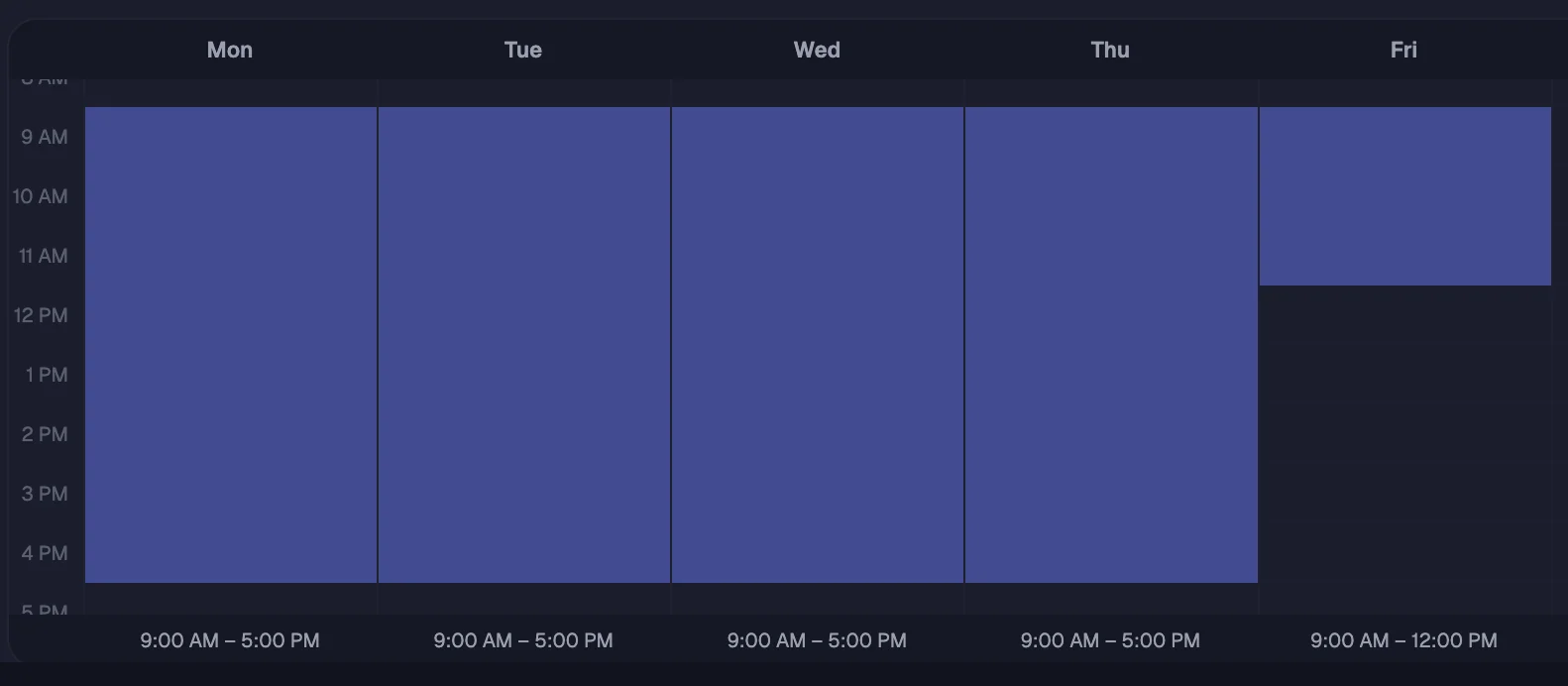
| Working hours: Auto | Follows the working hours set in your Microsoft account (9 to 5 if unset). |
| Working hours: Custom | Drag your availability per weekday directly in the grid. |
| Include scheduling link | Attaches your booking link (e.g. Microsoft Bookings) to slot proposals, as a self-service alternative. |
| Booking URL | The link that gets attached. |
| Scheduling preferences | Free-text rules in your own words: "back-to-back in the mornings", "never before 9", "no Fridays". timelit follows them when picking slots. |
Good to know
- Scheduling needs both the Calendar connection (to read availability and create events) and works hand-in-hand with email drafting.
- The agenda in the invite comes from the actual email thread. If the request was vague, the agenda will be too. A clear ask produces a clear agenda.
- Every scheduled meeting counts toward your time saved on the Dashboard.