Browse the docs
Search
Last updated: November 2, 2026
One search field at the top of every page finds pages and settings, your chats, automations, tasks, meetings and memories, and on request your emails and Outlook meetings. Type a question instead, and Ask answers it in a few sentences with links to what it found.
Why we built this
timelit has grown. Settings sit on several pages, chats pile up, automations run every day. Finding "the setting for my briefing days" or "the chat about the supplier report" should not mean clicking through menus until you hit it.
How it works
1. Open the search. Click Search… at the top of the page. On a phone, tap the magnifier at the top. The search appears once you have finished the introduction.
2. Type a few words. Results show up while you type, grouped:
| Group | What it finds |
|---|---|
| Pages & settings | Every page and settings section, also by other words: "billing" finds your subscription, "dark mode" the theme switch. |
| Actions | Things you can do right away: start a new chat, switch between light and dark mode, switch the language, open help, or run, pause or resume one of your automations. |
| Chats | Your conversations in the Cockpit, by title and by what was said in them. |
| Automations and Runs | Your automations and their runs, with each run's status. |
| Tasks | Reports and decisions in Tasks. |
| Meetings | Your meeting summaries. |
| Memories | What timelit remembers about you. |
Click a result to open it. When a group has more hits, click Show … more under it. With the field still empty, you see Recently opened and Recent searches.
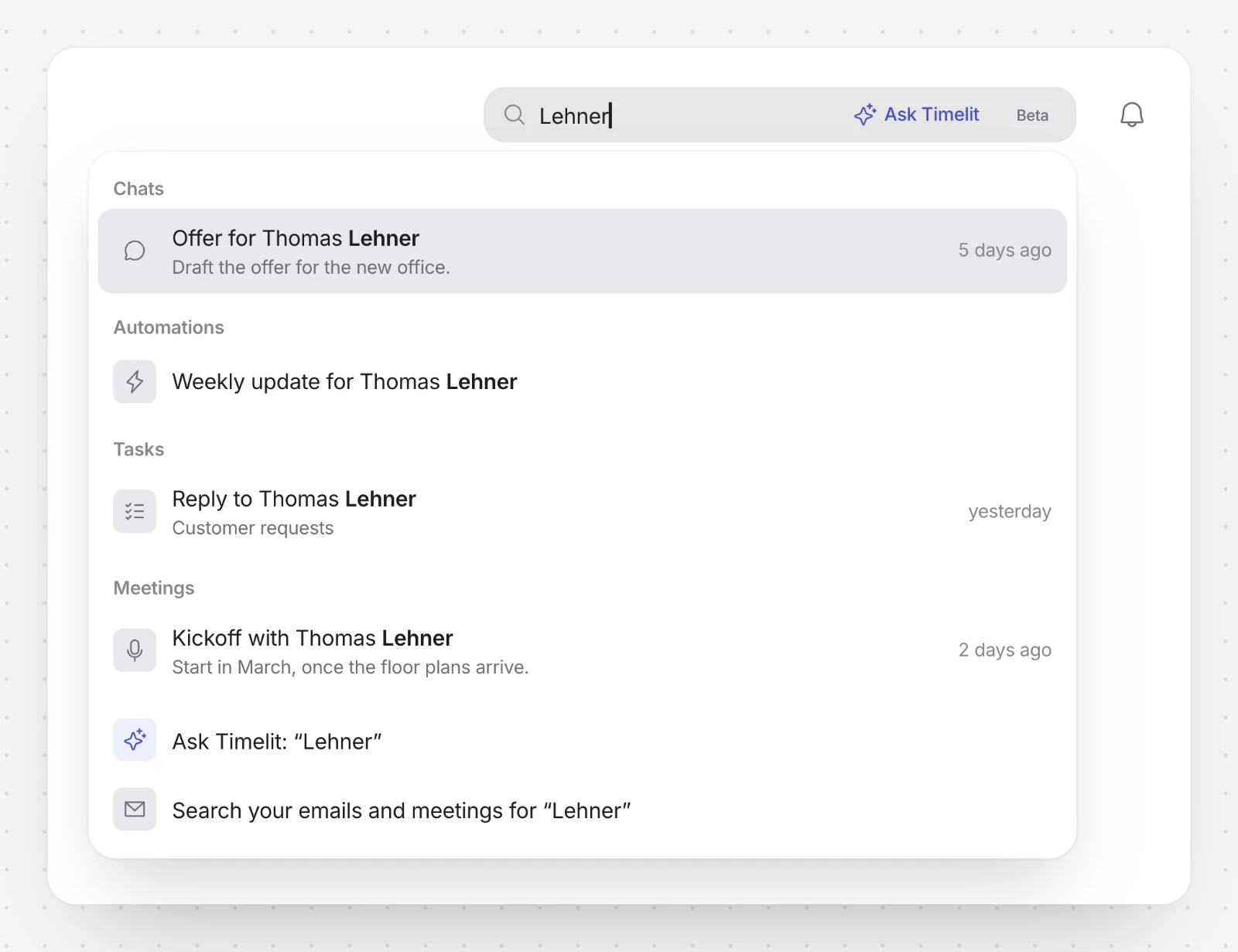
3. Search your emails and Outlook meetings. The last row, Search your emails and meetings for "…", searches your Microsoft 365 mailbox and calendar. The hits appear under Emails and Outlook meetings and open in Outlook in a new tab.
4. Ask a question. Type a question, for example "Which automations failed last week?", and click Ask Timelit in the field or the row Ask Timelit: "…". timelit answers in a few short sentences. Each number in the answer opens the result it refers to. When timelit isn't sure, it says so and points you to the results below.
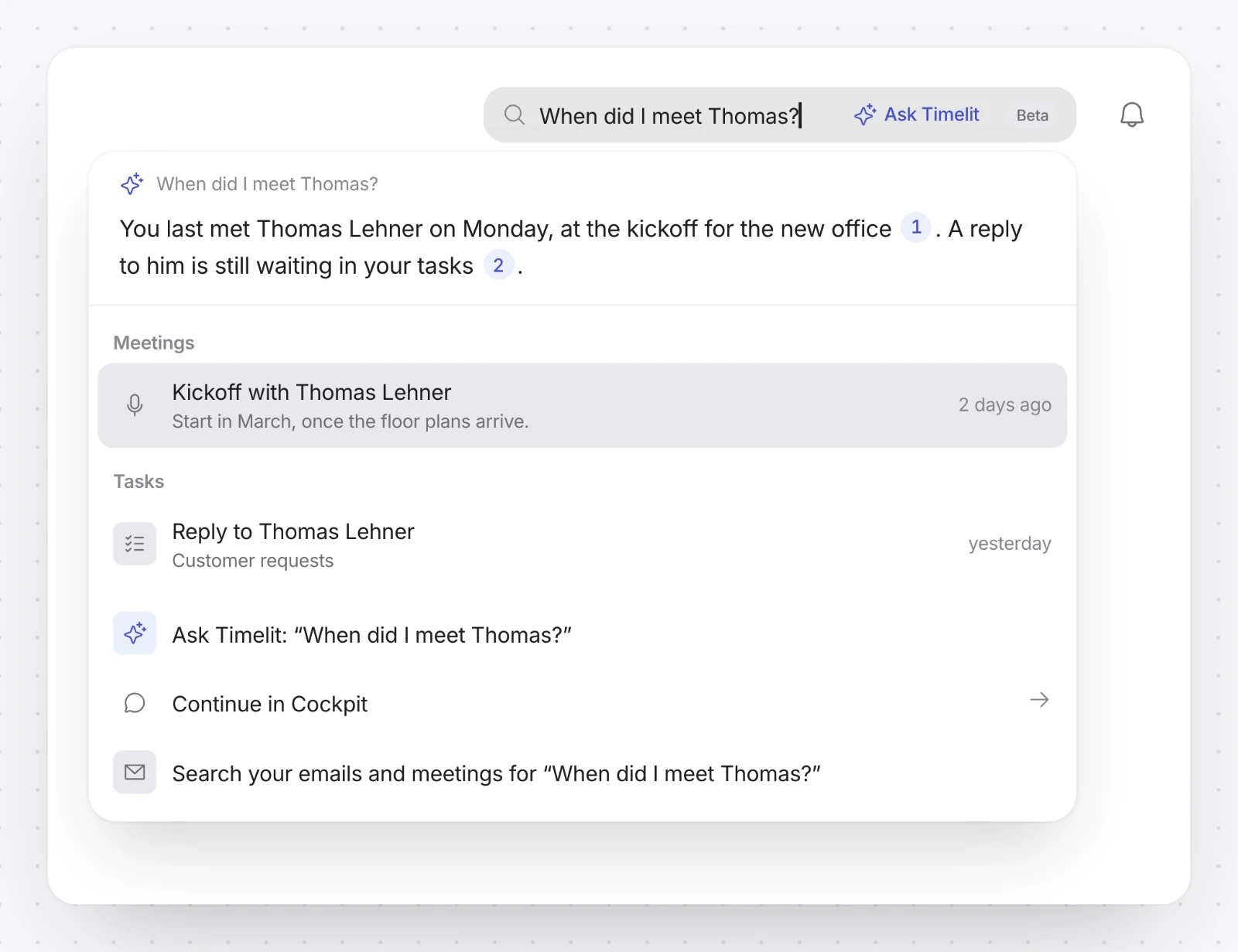
5. Keep going in the Cockpit. For a longer conversation, click Continue in Cockpit. The Cockpit opens with your question already typed in.
Only your chats
In the Cockpit, click the magnifier next to History in the sidebar. The search opens with the filter Chats, so it lists conversations only. Click the × on the filter to search everything again.
What timelit will never do
- Change anything when you ask. Ask only finds and answers. The only things the search does for you are the ones listed under Actions, and running an automation asks you first.
- Pass on what an email tells it to. An answer never contains a link, an address or a phone number from your results.
- Search beyond your account. You only find your own timelit data and your own mailbox and calendar.
Good to know
- Search is in Beta; the field shows a Beta badge.
- Emails and Outlook meetings are searched only when you click that row. If Microsoft 365 can't be reached, the search says so and everything else still works.
- Ask answers in the language your timelit is set to. It is AI and can be wrong, which is why every answer links to its results.
- If you ask a lot in a short time, Ask pauses for a few seconds. Finding keeps working.
- Keyboard users: Ctrl K (on a Mac ⌘K) opens the search from anywhere, and so does / when you're not typing. The arrow keys move, Enter opens, Shift and Enter asks, Esc closes.