Browse the docs
Booking page
Last updated: November 8, 2026
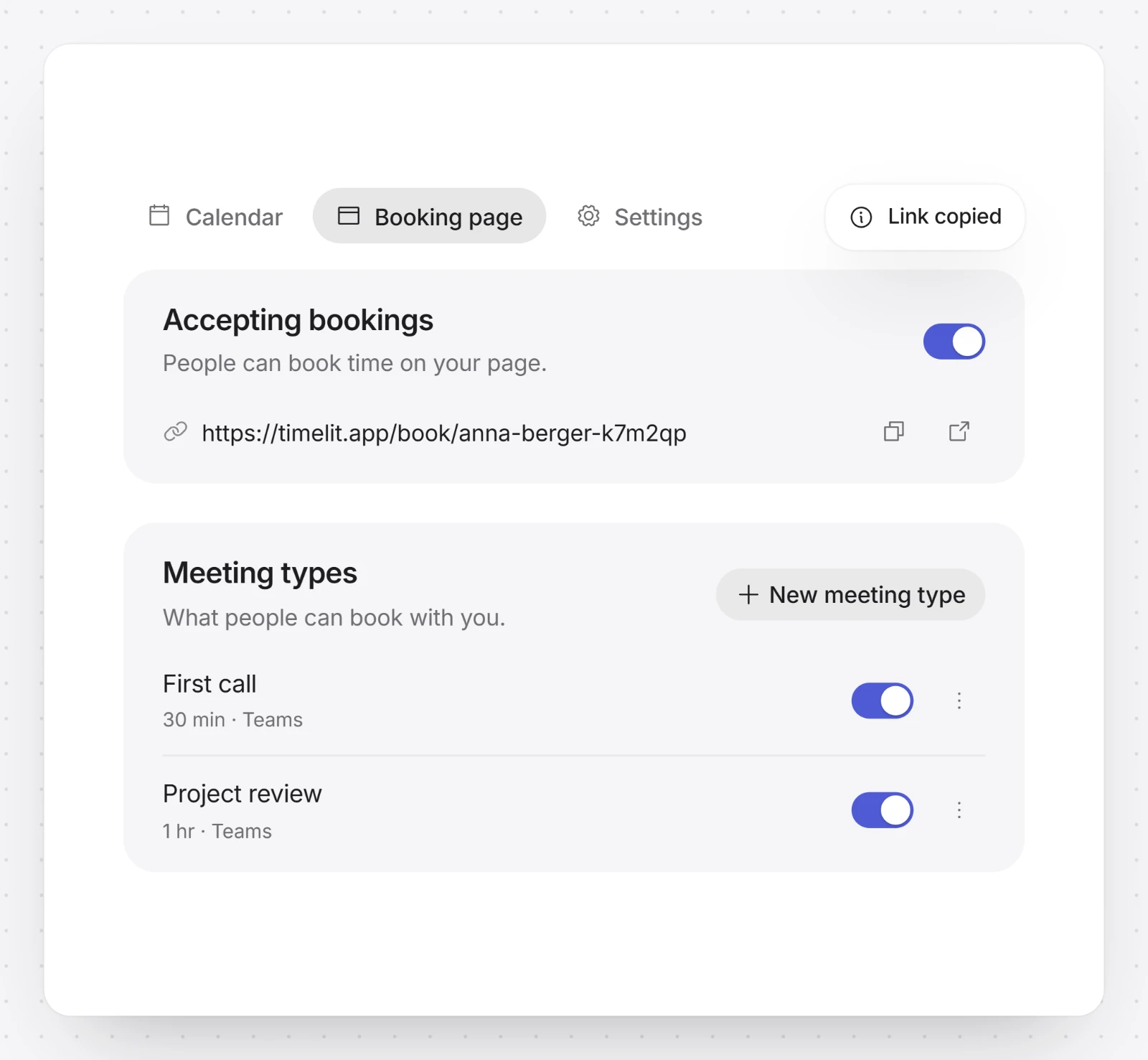
Your booking page is one link people use to book a meeting with you, without emailing back and forth. They only see times when you are really free, and the meeting goes straight into your Outlook calendar.
Why we built this
Some people just want to pick a time and be done. Sending them three slots, waiting for an answer and confirming can take a day for a 30-minute call. With a booking link they choose on their own, and timelit makes sure they can only choose times that really work for you.
If you prefer to answer meeting requests by email, Meeting Scheduling does that, and it can add your booking link to its proposals.
How it works
1. Create your page. Open Booking in the sidebar and choose Create booking page. timelit makes a link from your name and a short code, such as timelit.app/book/your-name-k7f3q9, and adds a 30-minute meeting type. The page is on right away. The link stays the same for good, so you can share it without worrying.
2. Adjust it. Open Booking page. Under Link, name and language you change the Name on page and the Page language; under Meeting types you decide what people can book. The Preview shows the page as visitors see it.
3. Share the link. Next to Accepting bookings, choose Copy link. Each meeting type also has a link of its own: open the menu next to it and choose Copy link.
4. A visitor books. They pick a meeting type, a day and a free time, enter their name and email, answer your questions and choose Confirm booking.
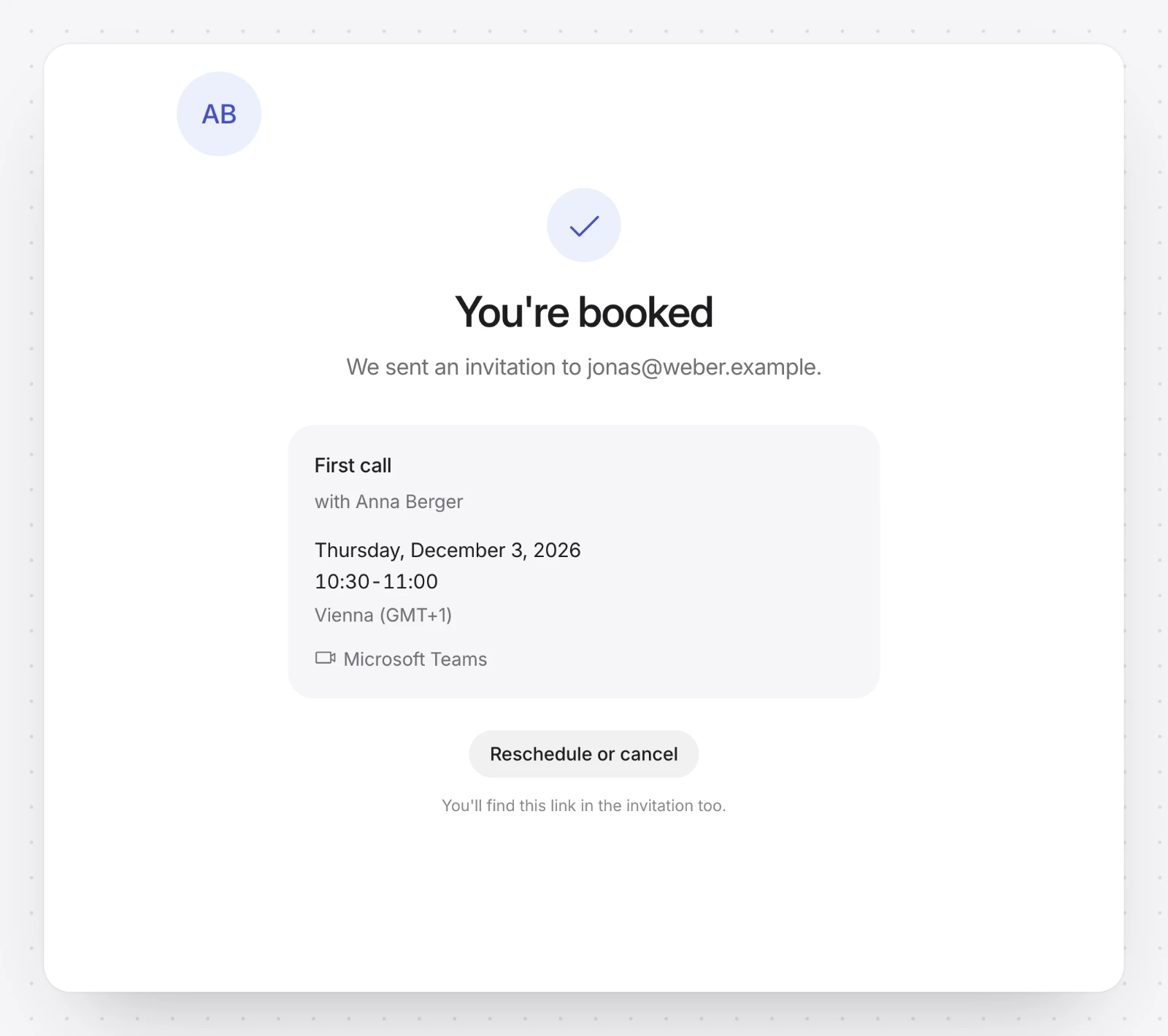
5. The meeting lands in your calendar. It goes into your Outlook calendar with a Microsoft Teams link, and the visitor gets the invitation from your mailbox. timelit emails you about new, changed and cancelled bookings.
Meeting types
A meeting type is one thing people can book with you, for example a 30-minute intro call or a 60-minute project review. Choose New meeting type, or open the menu next to an existing one and choose Edit.
| Setting | What it does |
|---|---|
| Title and Description | What visitors read on your page. |
| Link | The meeting type's own address. Leave it empty and timelit makes one from the title. |
| Duration | 15, 30, 45 or 60 minutes, or Custom. |
| Location | Microsoft Teams. If Teams isn't available for your calendar, invitations go out without a meeting link. |
| Questions | Questions visitors answer when they book: short text, long text, a choice or a checkbox. The answers stay in timelit. |
| Minimum notice | How many hours ahead someone has to book. New meeting types start at 4 hours. |
| Bookable up to | How many days ahead people can book. New meeting types start at 60 days. |
| Buffer before / Buffer after | Minutes kept free around each booking. |
| Start times every | How often a start time is offered, for example every 30 minutes. |
| Max bookings per day | A daily limit for this meeting type. Empty means no limit. |
The switch next to a meeting type shows or hides it. Nobody can book a hidden meeting type, not even with its own link. Bookings already made stay in your calendar.
What visitors see
- Your name, your photo or initials, and your meeting types. They pick one to see free times.
- A month view with the free times of each day, in their own time zone. They can change the time zone.
- A short form: name, email and your questions. Above the booking button a line tells them that their details go to you for this meeting, with a link to the privacy policy. The spam protection uses no cookies and no tracking.
- A confirmation that the invitation is on its way, with a Reschedule or cancel link. The same link is in the invitation.
The page is in English or German, depending on the visitor's browser.
Moving or cancelling
- The visitor opens the link in their invitation and chooses Reschedule or Cancel booking.
- You open Booking, then Calendar, click the booking and choose Cancel booking. You can add a note; the visitor gets the cancellation from your mailbox. You can also move or delete the meeting in Outlook, and timelit follows.
The booking details in Calendar also show the visitor's answers, with Open in Outlook and Join Teams.
Your look
Under Booking page, Branding puts your Colour, Logo, Cover image and Photo on the page. Use Microsoft photo takes the photo from your Microsoft account. timelit adjusts your colour where needed so text stays readable. Images can be PNG, JPG or WebP.
On your website
Under Booking page, Add to your website gives you a short code to paste into your website:
- In the page shows the booking page right inside your website.
- Button opens it on top of your website when someone clicks.
Pick the Appearance (System, Light or Dark), choose Copy code and paste it where it should appear. It works on any website that lets you add HTML, for example as a custom HTML or embed block. Visitors book exactly as on your booking page. It sets no cookies and stores nothing in your visitors' browsers, so it needs no cookie banner.
Language
The booking page shows in English or German. Under Booking page, Page language, Automatic shows it in your website's language when it sits on your website, otherwise in the visitor's own language. Choose Deutsch or English to always show that one. The invitation the visitor gets is in the same language. Your meeting types and questions appear as you wrote them.
Settings
Open Booking in the sidebar, then Settings.
| Setting | What it does |
|---|---|
| Working hours (Auto / Custom) | Auto takes your Outlook working hours; Custom lets you drag your hours in the grid. Meeting Scheduling uses the same hours. |
| Add bookings to | Shown when you connected more than one Microsoft 365 account to timelit: the calendar new bookings go into. |
| Check for conflicts in | The calendars whose busy times are never offered. See Booking calendars. |
| Keep public holidays free | No times are offered on public holidays in the country and region you pick. |
| Email me about new, changed and cancelled bookings | On from the start. |
What timelit will never do
- Offer a time you are busy. Only free times inside your working hours, in the calendars you check, are shown.
- Show visitors your calendar. They see free times, never what your appointments are.
- Tell your website who booked. A page with your booking code only learns that a meeting was booked and when.
Good to know
- Booking is in Beta.
- The booking page is part of every plan. When your trial or subscription ends, the page pauses and visitors see that it isn't available. It comes back as it was once your plan is active again.
- The page needs the time zone of your Outlook mailbox. If timelit can't read it, the page stays off until you set one in Outlook.
- If timelit can't add events to your Outlook calendar, the page takes no bookings. Booking then shows Reconnect Microsoft.
- Your page's link cannot be changed. If you need a different name on the page, change Name on page; the link stays.
- On a phone, Booking is under More.