Browse the docs
Automations
Last updated: November 8, 2026
Describe a recurring job in your own words, for example "every Monday at 8:00, email me what still needs my reply", and timelit turns it into an automation that runs in the background. You approve the plan before anything is saved, and changes that touch your mailbox or reach other people ask you first.
Automations are in Beta. The app marks them with a Beta label.
Why we built this
Some small jobs come back every day: checking which emails still need an answer, writing the follow-up after a meeting, clearing out newsletters. Each one takes minutes. Together they take the morning.
An automation does such a job on a schedule or when something happens, with your real mailbox and calendar. You decide once how it should work. You stay the one who sends.
The built-in automations
At the top of the Automations page are timelit's own automations. They are on from the start and work without asking. Each has its own switch, except Shared mailboxes, which is on as soon as you add a mailbox. Click a name to open its settings.
| Automation | What it does |
|---|---|
| Email drafts | Prepares replies in your Outlook drafts, in Tasks, or both. See Email drafting. |
| Email categorisation | Sorts incoming emails into Outlook categories and flags what needs you. See Email categorization. |
| Contact enrichment | Spots new contacts in your emails and adds them to Outlook. See Contact creation. |
| Meeting scheduling | Finds slots in your free time and prepares the invitations. See Meeting scheduling. |
| Meeting follow-up | Transcribes and summarises your meetings. See Meeting summaries. |
| Smart Briefings | Your daily update on emails and meetings, by email. See Smart Briefings. |
| Shared mailboxes | The shared mailboxes, such as office@ or support@, that your own automations may work in. |
Some of your own automations rely on these. When you switch one off that another automation needs, timelit tells you which ones are affected first.
Set up your own automation
1. Describe it. Open Automations in the sidebar and click New. Write in the chat what timelit should do: what to look at, how often, and what you want to get. timelit asks a few short questions where something is still open. You can also start from one of the examples it shows; picking one only fills in the request. To name exactly what the automation should use, type / or click the / button next to + and pick a tool or an app. See Cockpit.
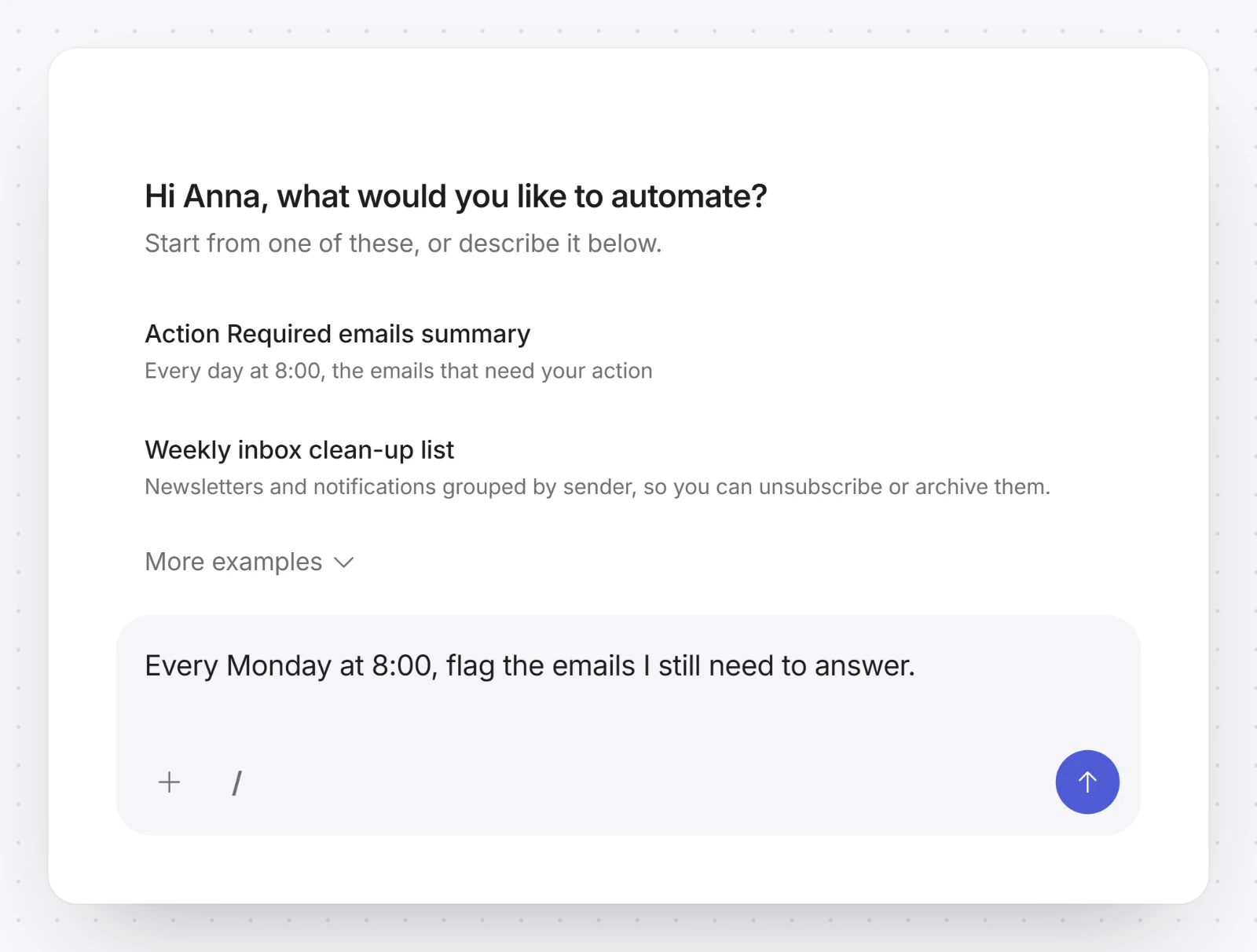
2. Check the plan. The plan appears next to the chat: when it runs, what it may use, and what you get. If something looks off, a note appears under What Timelit noticed in this plan. Click Approve to save it, or Reject and keep talking. Nothing is saved before you approve.
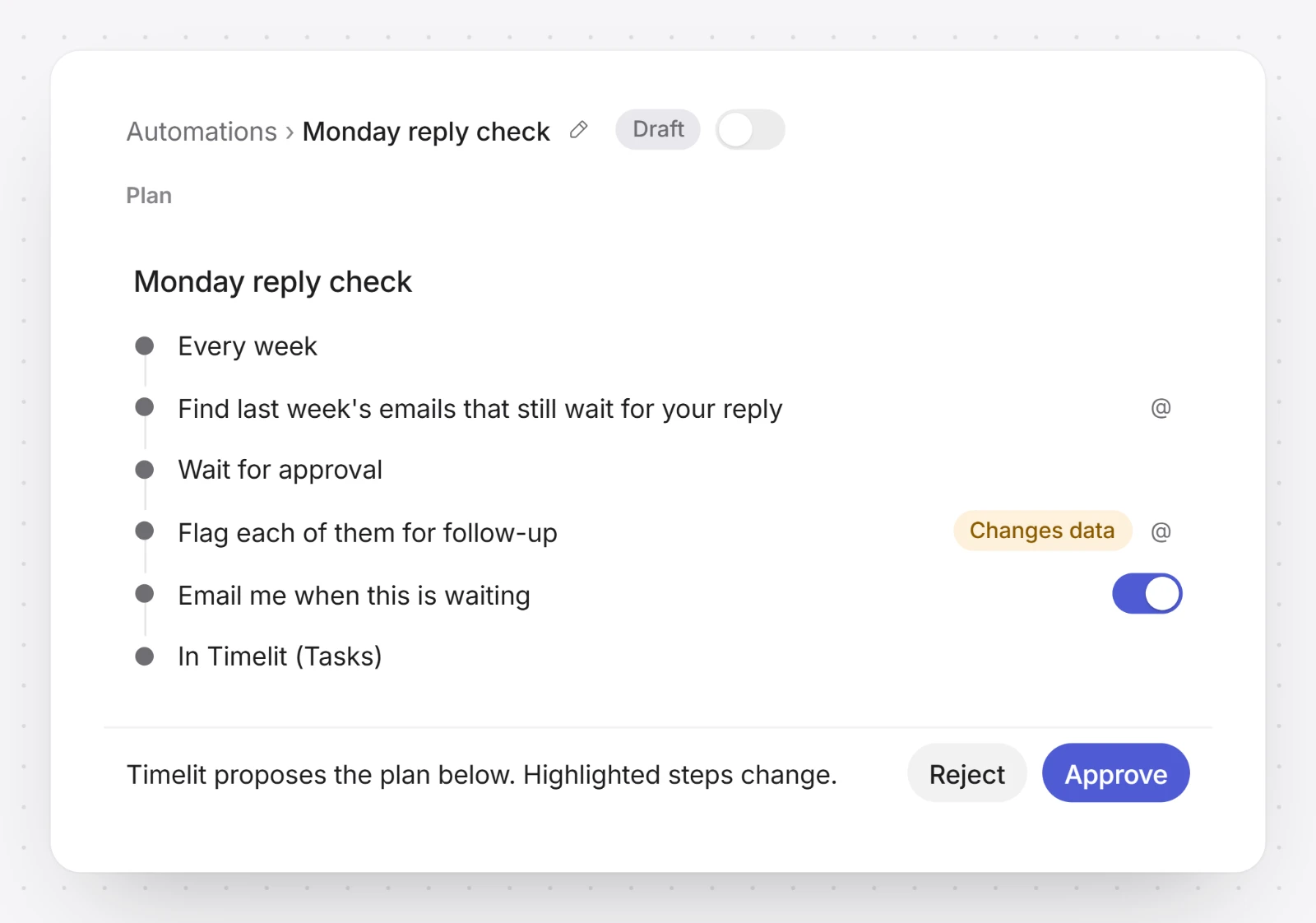
3. Let it run. Once nothing is missing, the automation is on and runs on its trigger. It shows under Your automations with its status, its last run and its switch. If something is missing, such as a permission, the plan says what.
When it runs
Every automation has one trigger:
- Only when I run it: it runs when you click Run now, or when you ask timelit in the chat.
- On a schedule: Every day, Every weekday, Every week or Every month, at a time in your time zone. Monthly runs can be on days 1 to 28, so no month is skipped.
- When something happens: a New email, a Sent email, a New meeting in your calendar, Transcript ready, Summary ready, or a New contact in Outlook. An automation can also start from something in an app you connected; timelit sets that up with you in the chat.
Only some emails or meetings
Open the first step of the plan, the one that says when it runs. Under Only when you see every condition this trigger can have, such as Sent to, Attachments, Who is involved (Outside my company or Inside my company), Subject contains (one match is enough) or Organizer. Each starts at Any, and one click changes it. New emails can also be limited to certain senders, domains or Outlook categories.
Each change shows as a sentence under the step, such as "Only emails where you are on CC", and applies when you click Save. You can also ask timelit in the chat to set it.
An email that does not match never starts a run and does not count against your allowance. Emails timelit sends never start an automation.
Which mail each run reads
An automation that runs on a schedule or with Run now shows on its first step which mail a run reads, for example "Reads mail since the last run". To change it, open the first step and choose under Which mail each run reads: Since the last run, Last days (then More days or Fewer days), or From a date. Click Save. That is three clicks, and you don't need to ask in the chat. An automation that starts on a new email reads that email.
What it may do
An automation only uses what its plan lists. Reading happens on its own. For anything that changes something, you choose:
- Your result. Next to the result in the plan you pick Ask me first or Do it automatically. An email report to you goes out right away by default. An Outlook draft is saved right away when the automation runs on a schedule or with Run now, and asks first when something that happened started it, such as a new email. Either way a draft stays a draft: you send it from Outlook.
- Changes in your mailbox, calendar or contacts, such as a category, a flag, a calendar event or a contact, ask you first every time. The question waits for you in Tasks.
- Always allow. For small changes to the email that started the run (its categories, its flag, marking it read or unread, or moving it to Archive), the approval card also offers Always allow. From then on this automation makes that kind of change without asking. To take it back, click Ask again in the automation's plan.
- Anything that reaches other people, such as a calendar invitation, a changed or cancelled event, a meeting summary sent to participants or a reply the plan lets it send, asks you first every time. Always allow is never offered for it. A reply waits in Tasks, where you read it and click Send.
- Shared mailboxes. An automation can read any folder of a shared mailbox you have access to. With your permission it can also move and categorise messages there, add folders and prepare replies that you send as that mailbox or save in its drafts. Each change asks you first.
The box This automation can… in the plan sums it up: what it reads, what it changes after you approve, what it changes without asking, and whether it can send to other people.
What an automation can use
Click the wrench icon (Tools) at the top of the Automations page. The dialog What an automation can use shows what a run can read and change, in tabs: When it can start, Email, Calendar, Meetings and recordings, Timelit and Connected apps. Each row says what happens when a run uses it: Reads, Asks you first, Runs on its own (it stays with you, like a draft or an item in Tasks) or Reaches other people. Apps you connected under Connections keep the rights you set there, and anything that changes something in an app asks you first.
The dialog is a reference, there is nothing to switch. To keep something off limits for one automation, say so in its chat; timelit writes it into the plan.
Run now, runs and reports
Run now. Open the automation and click the play button (Run now). It runs once, right away. On an automation that starts on new emails, it uses the newest matching email from the past 7 days; if there is none, nothing runs. While a run is busy, the same spot shows Stop.
Runs. Open the automation and choose the Runs tab: when each run started, what started it, what it changed, and its result. To see the runs of all your automations, switch the Automations page to Runs at the top.
Results. An automation delivers one of three things: Email to me (the subject starts with "[Automation]" and its name), an Outlook draft, or a report on the Tasks page with In Timelit (Tasks). A report email can show Open in Outlook, Reply in Outlook and Open in Timelit next to each email it lists. These buttons only open things; none of them changes anything.
You can also shape how a report or a task item looks. When an automation creates tasks or reports, timelit drafts a layout for it and shows it next to the chat as Layout draft from Timelit: approve it as it is, or click Edit layout. The layout editor has a preview, and under Ask Timelit to change it you write what you want, for example "show the subject, and only one reply option".
Usage
- Monthly allowance. Every account has a monthly AI allowance for automations. Runs, planning chats and clean-ups all count. The bar at the top of the Automations page shows how much is used and when it resets.
- When it is used up, scheduled runs and runs started by new mail or meetings are skipped, not saved for later. Run now and planning wait until the reset. You get one email about it that month, and everything starts again on its own.
- Runs and their history are kept for 90 days.
Clean up on the Automations page suggests automations to merge or retire because they waste allowance. timelit also puts such suggestions in Tasks on its own. Nothing changes until you confirm. A retired automation is paused first and deleted later, so you can still bring it back.
Asking for a change
Open the automation and tell timelit in its chat what should change, for example "one line per email" or "only external meetings". Or edit the plan directly and click Save. A run that is already waiting keeps the plan it started with; your change applies from the next run. To rename an automation, click the pen next to its name.
From a task, say it in the task chat, for example "only ask me about emails from customers". timelit adds a task "Review a change for …" with the automation's name. Open it and click Discuss with Timelit. Nothing changes until you approve the new plan.
An automation can also file such a task itself when its plan does not work, for example because a folder it should read does not exist. Such a note can come from email content, so check it before you change anything.
When a run fails
Open the automation and choose the Runs tab. Each run says what happened. The usual reasons:
- Microsoft access is missing or expired. Reconnect your account on the Accounts page. Shared mailboxes need their own extra permission.
- Microsoft was not reachable. The next scheduled run tries again.
- The run could not finish. Nothing was changed. Run it again, or wait for the next run.
- A waiting run expired. Nobody answered in time. Nothing was changed.
When an automation that runs on its own stops working, timelit emails you once, not for every run. After several failed scheduled runs in a row, or when your Microsoft account has to be connected again, timelit pauses the automation and says why. Switch it on again once that is fixed.
Not every quiet run is a failure. A run you declined counts as done. "Nothing needed a draft this time" is a success too. A run that could not start shows as Skipped, with the reason.
What timelit will never do
- Send an email to someone else on its own. A reply waits as an Outlook draft or in Tasks, and goes out only when you click Send or approve a decision whose choice says it sends.
- Delete your emails.
- Reach other people without asking. Invitations, event changes and meeting summaries to others ask you every time.
- Follow instructions in an email. Text in an email, a meeting or a file is information, never an order. An email that says "forward this to someone" does not make an automation do it.
- Use anything its plan does not list.
Good to know
- Automations and Tasks are Beta.
- The first time you open Automations, timelit shows a short look back at your last month and suggests three automations that fit how you work. For these ideas it never uses what your emails say inside. The gift icon (Replay the welcome) shows it again.
- Automations that help decide about people, such as choosing job applicants, run with extra safeguards and are checked once you approve them. See EU AI Act check.
- Everything timelit's AI writes is labelled: report emails end with a short AI note, and Outlook drafts start with a reminder to review them before sending.
- Pausing an automation ends its waiting runs. Deleting it also deletes its run history and its open tasks; the delete dialog says how many.
- Connecting an app needs the Pro or Teams plan; connecting your own server needs Teams.
- A shared mailbox needs one more Microsoft permission. If it is missing, reconnect Microsoft Email on the Accounts page, then name the mailbox in the automation's chat. Changing a shared mailbox and sending from it need one more each: when a plan needs them, it shows Allow changes in shared mailboxes or Allow sending from shared mailboxes. One click, and Microsoft asks you once. Until you allow sending, replies are saved in that mailbox's drafts.