Email Categorization
Last updated: August 28, 2026
Every incoming email is automatically labeled with Outlook categories, by topic and by whether it needs action from you. Your inbox becomes scannable at a glance: color tells you what something is before you've read a word.
Why we built this
The real cost of email isn't answering it, it's triaging it. Every glance at the inbox forces a series of micro-decisions: Is this urgent? Is this for me? Can this wait? Multiply by a hundred emails a day and you've spent real energy before doing any actual work.
We use Outlook's native category system on purpose, instead of building our own inbox: the labels work everywhere your mail does (Outlook desktop, web, and your phone), and you can search, filter, and build rules on them like on any other Outlook category. No new app to live in.
How it works
1. An email arrives. timelit reads it, including the conversation context.
2. It gets one of two primary labels:
- Action Required: a direct request to you, such as a question, an approval, a task, or a follow-up.
- Informational: FYI-only, such as newsletters, announcements, promos, and notifications.
This distinction also drives other features: only Action Required emails get reply drafts, and the daily briefing lists your unread Action Required mail.
3. Topic categories are added. On top of the primary label, timelit assigns topic categories. The defaults are Scheduling, Urgent, Legal, Finance, Support, HR, Sales, but these are fully yours to change (see Settings).
4. The labels appear in Outlook. As regular Outlook categories with their colors, on all your devices. timelit also keeps your Outlook category list in sync, so the colors you pick in timelit are the colors you see in Outlook.
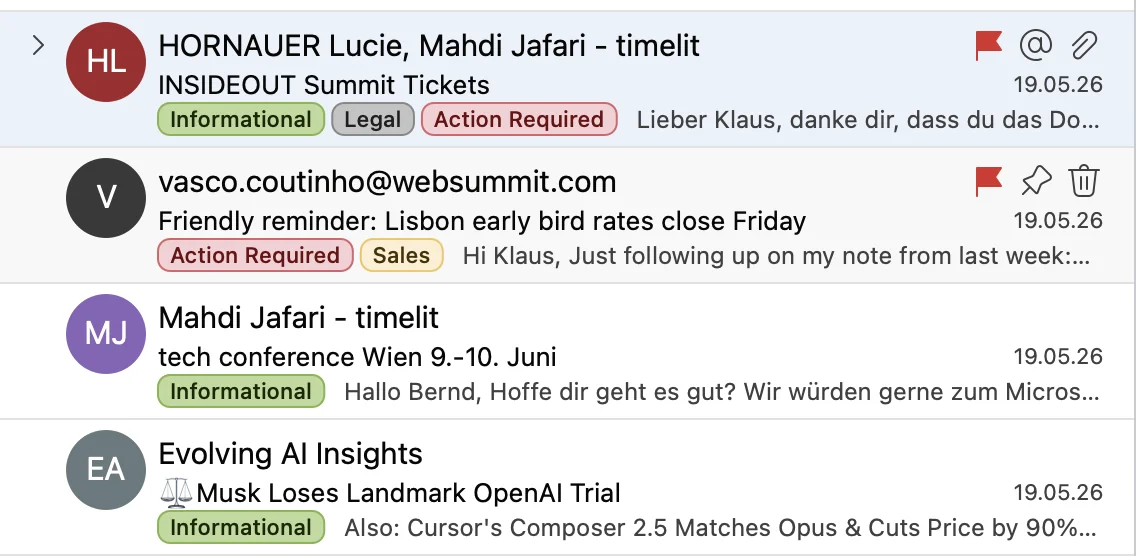
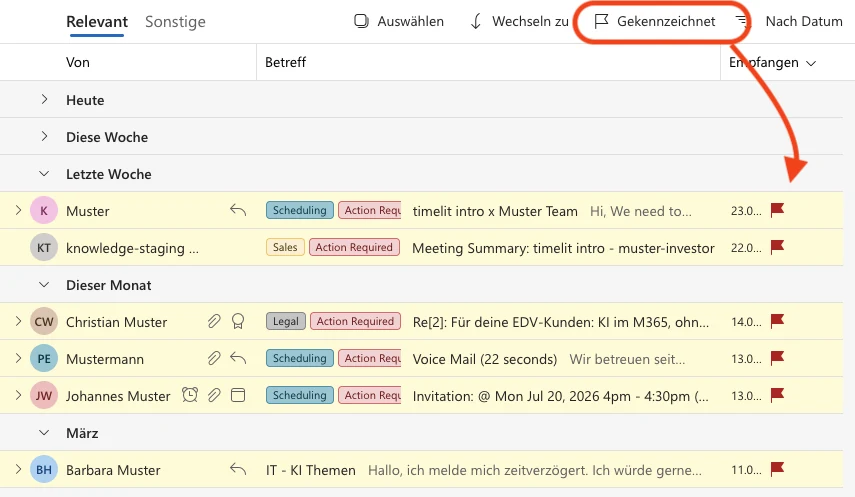
5. Optionally, action mail gets flagged. With Flag "Action Required" emails enabled, those emails also get an Outlook follow-up flag, so they show up in your Outlook to-do list and you can't lose them.
Filter your inbox to regain focus
To get your inbox focus back and see what's still open, filter for Flagged in Outlook: you get a clean list of everything that still needs action from you, oldest first, with nothing else in the way. The same works for every other category, so you can pull up just Finance, just Scheduling, or just Action Required whenever you want to work one topic at a time.
What timelit will never do
- Move or delete emails. Categorization adds labels; your emails stay exactly where they are. No folder shuffling, no "smart inbox" hiding things from you.
- Mark anything as read. Read/unread state is yours.
- Touch categories you set manually. timelit adds its labels; it doesn't remove yours.
Settings
| Setting | What it does |
|---|---|
| Categorize emails (main toggle) | Turns automatic categorization on or off. |
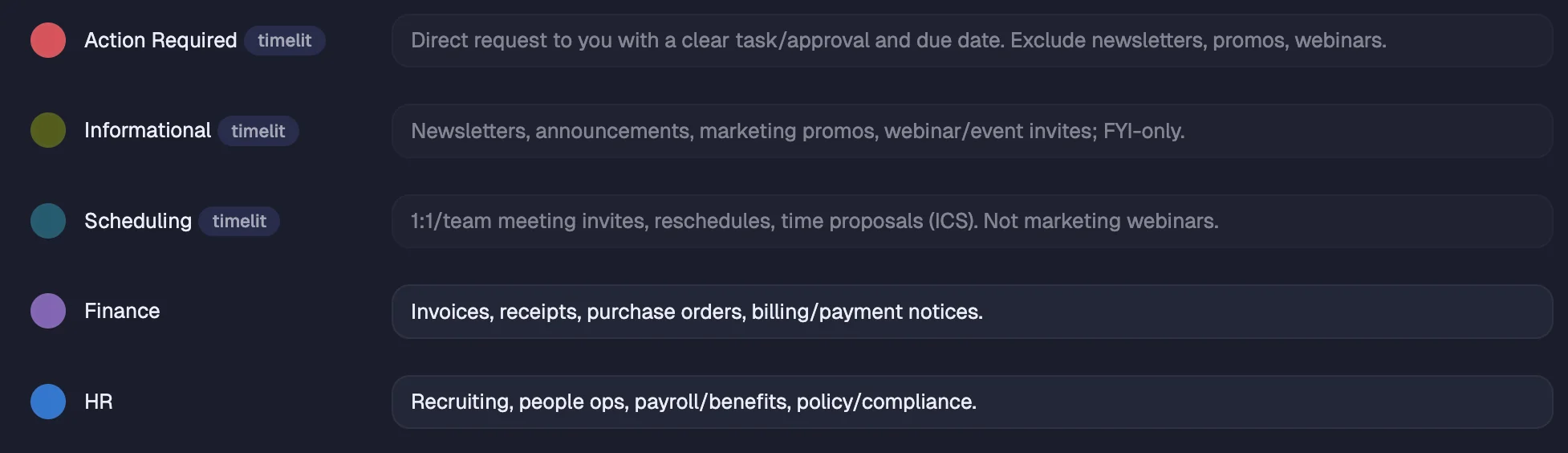
| Email categories | Your custom topic categories: rename them, pick colors, and (important) write a short description for each. The description is what timelit uses to decide what belongs in the category. |
| Flag "Action Required" emails in Outlook | Adds an Outlook follow-up flag to action-required emails. |
Tip: the category description matters more than its name. "Finance: invoices, receipts, billing, payment notices" categorizes far more accurately than just "Finance". Describe the category as you'd explain it to a new assistant.
Good to know
- Action Required and Informational are fixed; they're the backbone other features rely on. The topic categories are fully customizable, up to the shown maximum.
- You can combine this with classic Outlook rules: e.g. auto-move everything timelit labels "Newsletter" to a folder. timelit does the understanding, Outlook does the moving. Your rules, your control.
- Categorization requires the E-Mail connection.