Browse the docs
Agents
Last updated: November 16, 2026
An agent is a helper with fixed instructions, for example one that answers questions about your travel policy or writes offers the way your company does. You describe it in one sentence, timelit sets it up, and you pick it in the chat whenever you need it.
Agents are in Beta. The app marks them with a Beta label.
Why we built this
Some questions come back every week, and every time you explain the same background first: which rules apply, which documents count, how the answer should sound. An agent keeps that background for you. timelit itself stays the default in every chat; your agent only answers when you pick it.
How it works
1. Describe it. Open Agents in the sidebar and click Create agent. Write what the agent should do, for example "answers questions about our travel policy". timelit may ask one round of questions.
2. Check what timelit set up. The agent appears beside the chat, with a name, a symbol and four tabs: Instructions, Tools, Knowledge and Memory. Change what you like, by hand or by telling timelit in the chat. When timelit has a new suggestion for something you changed yourself, you choose Use this or Keep mine. Rather type it all yourself? Click Fill it in myself.
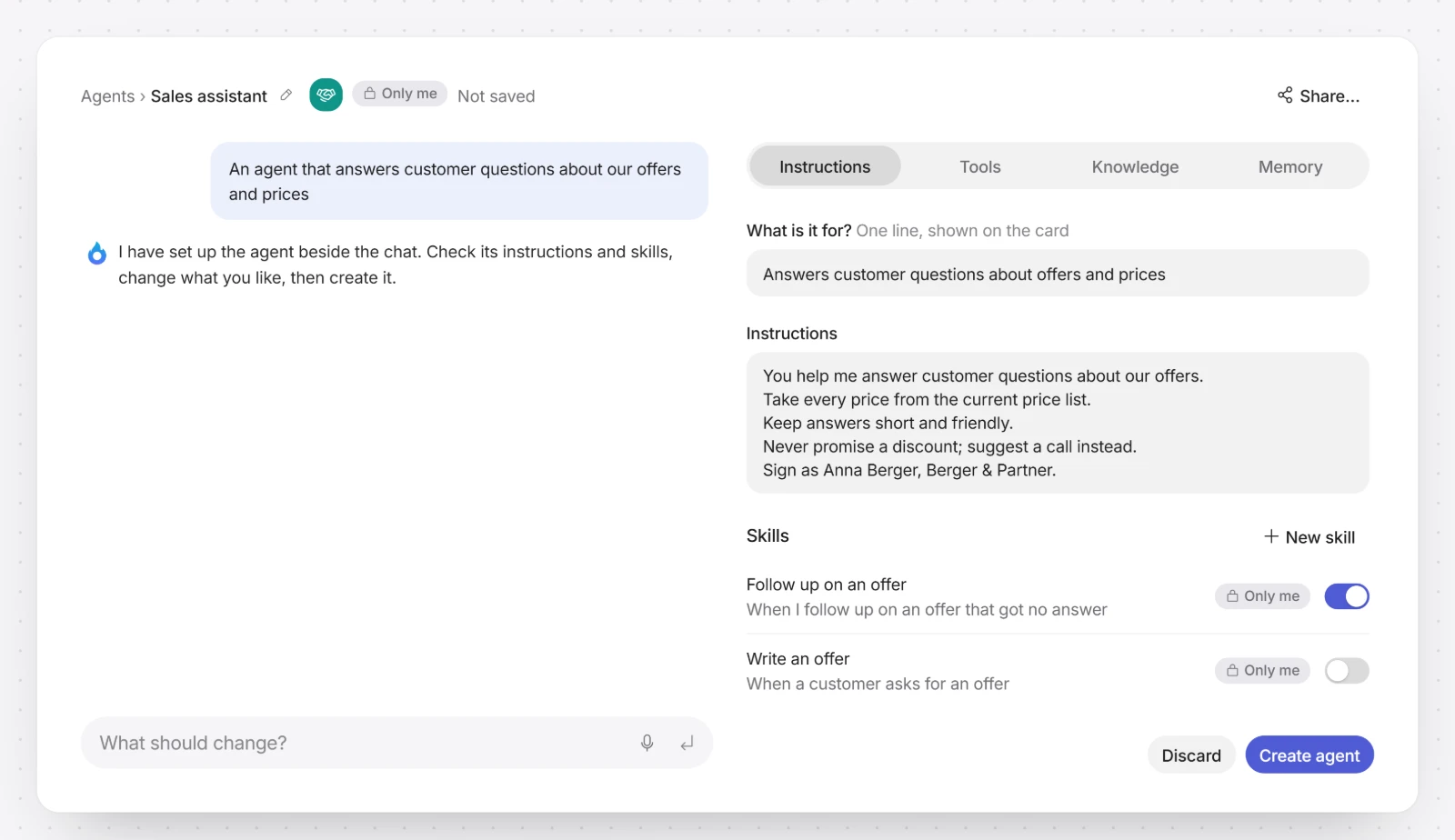
3. Create it. Click Create agent. Nothing is saved before that.
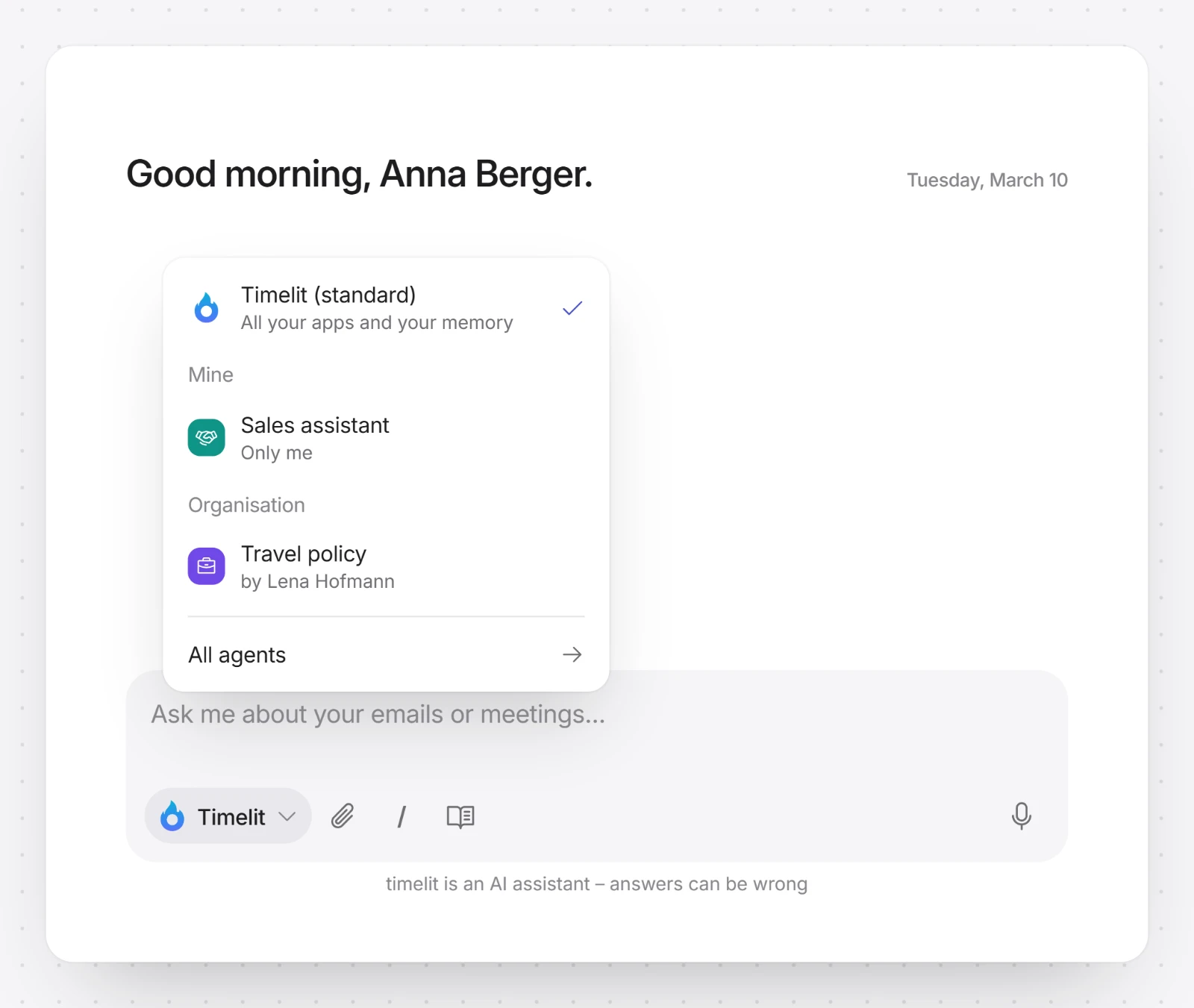
4. Use it in the chat. In the Cockpit, click the agent button next to the message box and pick your agent. The chat shows "From here on … answers" with the agent's name. To go back, pick Timelit (standard). On the agent's page, Use in chat does the same in one click.
To change a saved agent, open it under Agents and tell timelit what should change, or change it yourself, then click Save.
The four tabs
| Tab | What you set there |
|---|---|
| Instructions | What the agent does and how it sounds, the line on its card (What is it for?) and the skills it follows. New skill creates one without leaving the agent. |
| Tools | What the agent may do. Each area of timelit, such as reading mail or changing your calendar, and each of your connected apps has a switch. Open an app to switch single tools on or off. While everything is on, new ones are added automatically. |
| Knowledge | The knowledge bases it looks things up in. Add files creates a new one from your files. |
| Memory | Knows the person: it may use what timelit knows about whoever chats with it. Learns: it keeps its own memory about its job, listed under What this agent knows. See Memories. |
With every tool switched off, the agent only asks questions and uses its skills and knowledge.
Sharing
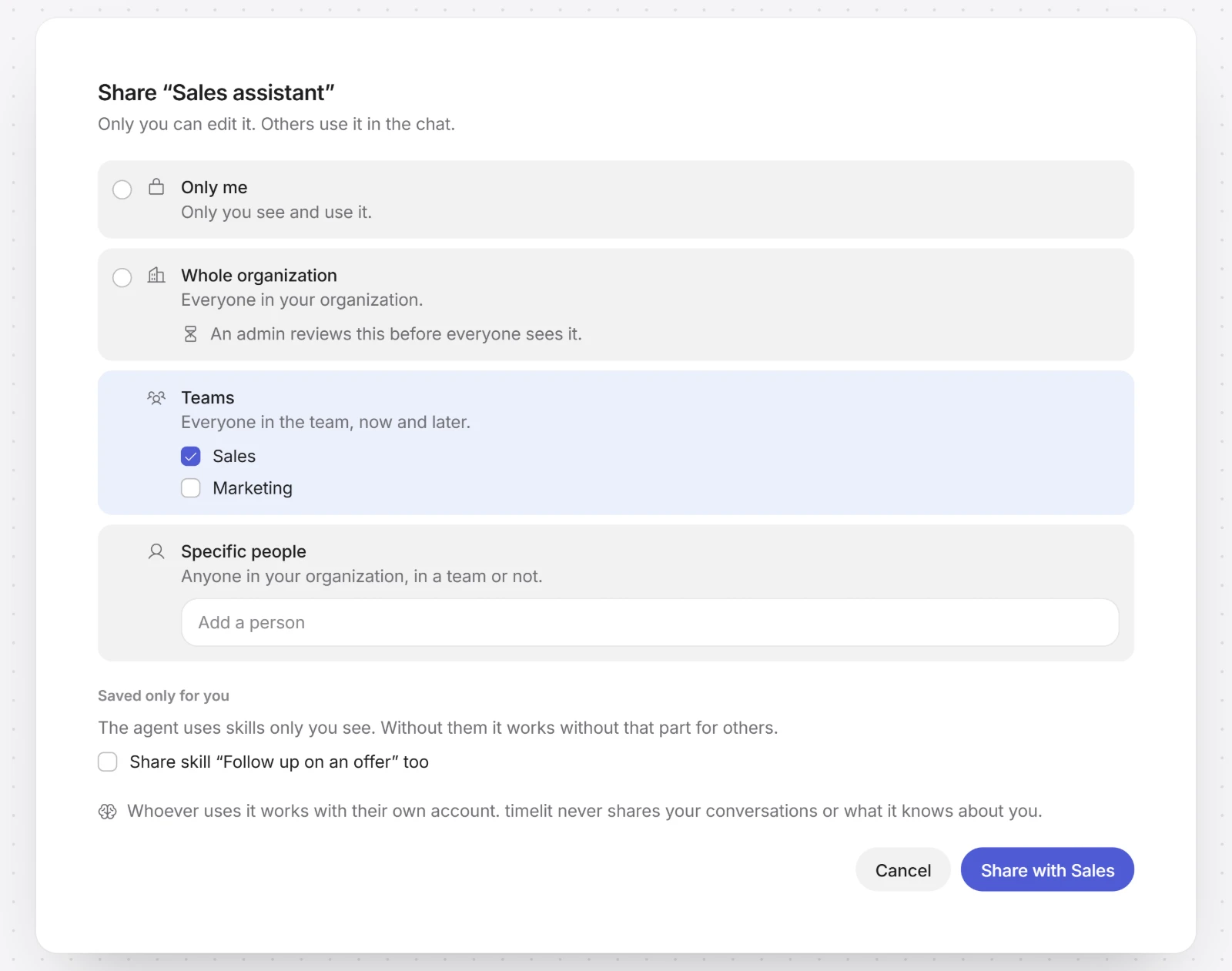
On the Teams plan, click Share… on the agent and choose who may use it:
- Only me: only you see and use it.
- Teams: everyone in the teams you choose, now and later.
- Specific people: colleagues you name one by one.
- Whole organization: everyone, once an admin has approved it. Until then the agent keeps its old visibility.
If the agent uses skills or knowledge bases only you can see, the dialog asks for each one whether to share it too. Whoever may use a knowledge base sees every document in it. The Memory box shares what the agent learned about its job; it is off unless you tick it.
Only you can edit an agent you created. Colleagues find it under Agents, filtered by Teams, Organization or Shared with me. When a team or the organization is chosen in that filter, the button reads Create team agent or Create organization agent, and the new agent is shared with them right away.
What timelit will never do
- Give an agent more than the person using it may do. An agent works with the account of whoever uses it: their mailbox, their apps, their own memory. When you ask for something it is set up without, it says so.
- Share your sign-ins, your conversations or what timelit knows about you when you share an agent.
- Send or change something without your approval because an agent says so. The same approval cards as in the Cockpit apply.
Good to know
- Your own agents need the Pro or Teams plan. Sharing needs the Teams plan.
- Your organization may decide who may create or share agents, under Organization, Rights. See Organization.
- An agent's page lists your automations that use it under Used in your automations. Deleting the agent pauses those automations, and the delete dialog names them. See Automations.
- Deleting an agent removes it for you and everyone you shared it with.
- On a phone, Agents is under More.