Browse the docs
Tasks
Last updated: November 8, 2026
Tasks is the one list of everything that waits for you: changes your automations want to make, decisions they leave to you, replies timelit prepared, and reports. You decide with a click, and nothing goes out before you say so.
Tasks is in Beta, like Automations.
Why we built this
Automations work in the background. When one needs you, that question should not get lost between newsletters in your inbox. Tasks collects every open question in one place and puts what you need to decide right next to it: the email, the prepared reply, the change.
What lands in Tasks
| Task | Where it comes from | What you can do |
|---|---|---|
| A change to approve | An automation wants to change something, such as a category, a calendar event or a contact | Approve, Deny, sometimes Always allow |
| A decision | An automation stops and lets you choose, for example which emails get a reply | Choose per item, then Approve |
| A reply | Email drafts prepared a reply, when Where replies go is set to Timelit task or Both, or an automation wants to send one | Send, Save as Outlook draft or Skip |
| An EU AI Act check | The check of an automation found something you should read | I have read this and take responsibility. See EU AI Act check |
| A report | An automation whose result is In Timelit (Tasks), or an item an automation filed for you | Done, Later, Open the run |
| A chat answer | An answer you kept with Add to Tasks in the chat | Done, Delete, Open the chat |
| A change request | You or an automation asked for a change to an automation | Discuss with Timelit or Close |
| Clean-up suggestions | timelit suggests merging or retiring automations | Confirm or dismiss |
The list is grouped into Needs you, Later and Done. The sidebar shows how many tasks wait for you. Filters narrow the list by automation, priority, task type and time.
How it works
1. Open a task. Open Tasks in the sidebar and click a task. The name of the automation at the top opens the automation itself. A run that waits for you says how long it still waits, for example "Waits 20 h more for you, then the run ends."
2. Approve or decline a change. The card shows exactly what would happen, for example the categories before and after, who is invited, everyone a draft goes to and the address behind every link. Click Approve, and the run makes exactly that change and continues. Click Deny, and nothing changes.
3. Decide on several emails at once. A decision can cover many emails, such as your Action Required mail of the day. Each email shows one line on why it needs you, and timelit has already picked what it recommends, Reply or Skip. Change only what you disagree with. Show reply opens the prepared reply so you can edit it, and Open in Outlook on each row opens that email in Outlook. Then click Approve: every reply you kept is saved as a draft in its own thread in Outlook.
When the automation's plan says what each choice does, for example move the email to a folder, add a category or send a reply, the buttons on each row are those choices and each one names what it will do. Approve then does all of it at once, without a separate question per email, and the task lists it under What was done.
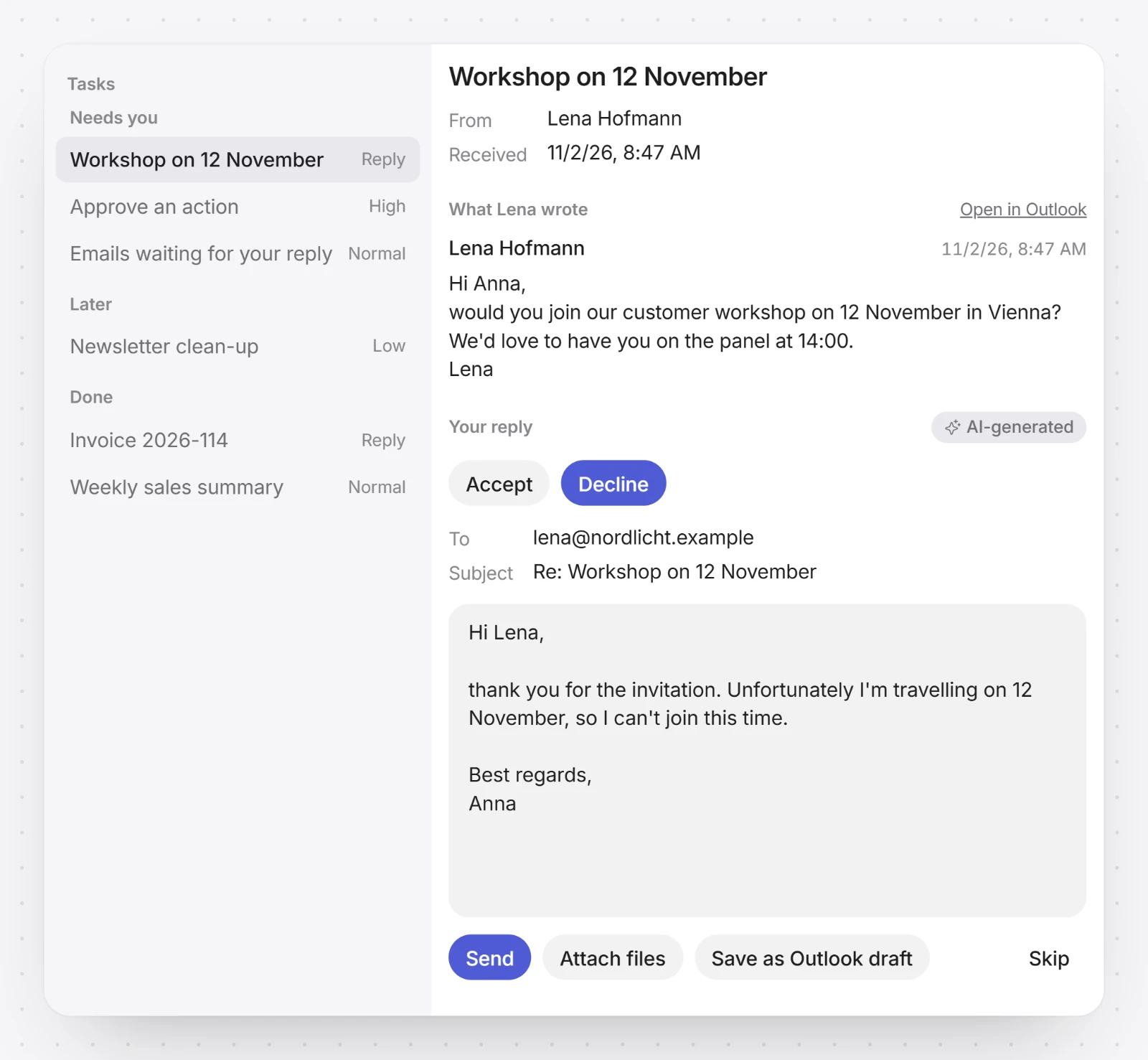
4. Work on a reply. A reply task shows the subject, who wrote and when, then the email you are answering, without the copies of older emails, and below it your reply with To and Subject. When timelit prepared more than one reply, a button for each sits above the text, for example "Accept" and "Decline". One click puts that reply in the text box, where you can still change it. Then:
- Send sends it from your mailbox, in the email's thread. It lands in your Sent Items like any reply you write in Outlook. The first time, Microsoft asks you once to allow it, and then you are back on the task.
- Attach files adds files before you send.
- Save as Outlook draft saves it in the email's thread in Outlook, for you to send from there.
- Skip closes the task; nothing is saved and nothing is sent.
5. Read a report. A report shows what an automation found. In a list of emails, each row has its own Open in Outlook button. Done marks it as read, Later moves it to Later, Reopen brings it back. Open the run shows the run it came from.
You can also ask in the chat under a task, for example "make the reply to Anna shorter" or "what exactly did she ask?".
What happens after you decide
- Approved: the run carries out exactly the change you saw, then continues. If it wants another change, it asks again.
- Declined: the change is not made and the run does not ask for it again. A declined run counts as done, not as failed, and the next run does not bring up the same email again.
- No answer: a waiting run ends after a while without your answer. Nothing changes, and the next run starts fresh.
- A reply that is no longer needed: when a newer email arrives in the thread, or you answer from Outlook yourself, the reply task closes on its own.
- Paused automation: pausing it ends its waiting runs. Deleting it also deletes its open tasks.
Emails about waiting tasks
timelit emails you when a run waits for you, with what each automation wants and when it expires. Runs you start yourself with Run now send no email, because you are already in the app. To stop these emails, open Settings and switch off Automations waiting for you under Preferences. The Tasks page always lists everything, with or without the emails.
What timelit will never do
- Send a reply you did not send. A reply goes out only when you click Send, or when you approve a decision whose choice says it sends. Everything else is saved as a draft.
- Make a different change from the one you approved, or one you declined.
- Decide about people for you. In a task about people, such as job applicants, nothing is preselected: you choose for every person yourself. See EU AI Act check.
Good to know
- Tasks and Automations are Beta.
- Without the AI note, under the reply, leaves out the line saying timelit wrote it, for this reply only.
- When a prepared reply still has a gap such as [date], [name] or XXX, the task says "Contains placeholders" and names them, so you fill them in before you send.
- Items an automation filed while reading emails can quote those emails. Check them before you act.
- Tasks and their chats are kept for 90 days, together with the run they came from.
- Always allow is offered only for small changes to the email that started the run: its categories, its flag, read or unread, or moving it to Archive. You can take it back in the automation's plan.